Account Creation
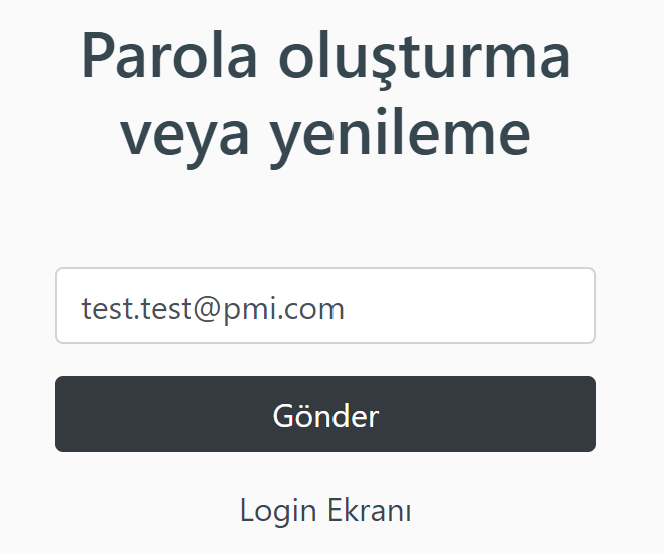
Click on the Click to create or renew password link to create an account or renew the forgotten password. The corporate e-mail address is written and the Send button is pressed. A password is created by clicking the link in the incoming e-mail.
Creating a Reservation
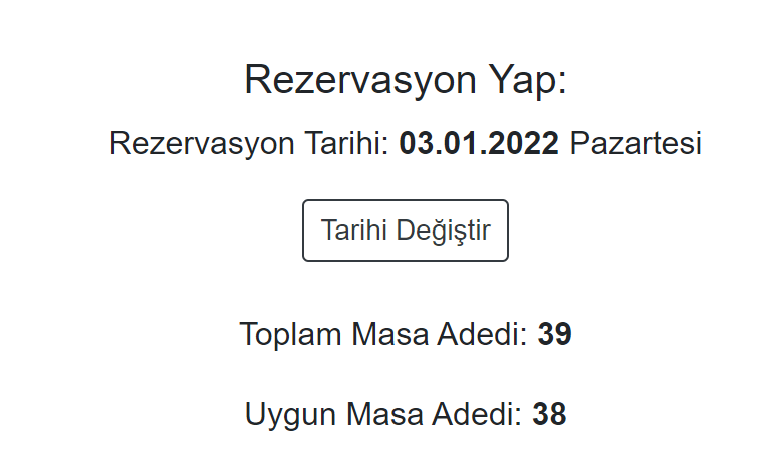
On the page that opens, the date is first selected. If reservations will be made for more than one date, reservations must be made individually.
Then click on the desired table (the appropriate table shown in green) and click the Yes button. In the determined limits, the approval process takes place automatically. Those who write Automatic Confirmation in their status say that the reservation process has been completed.
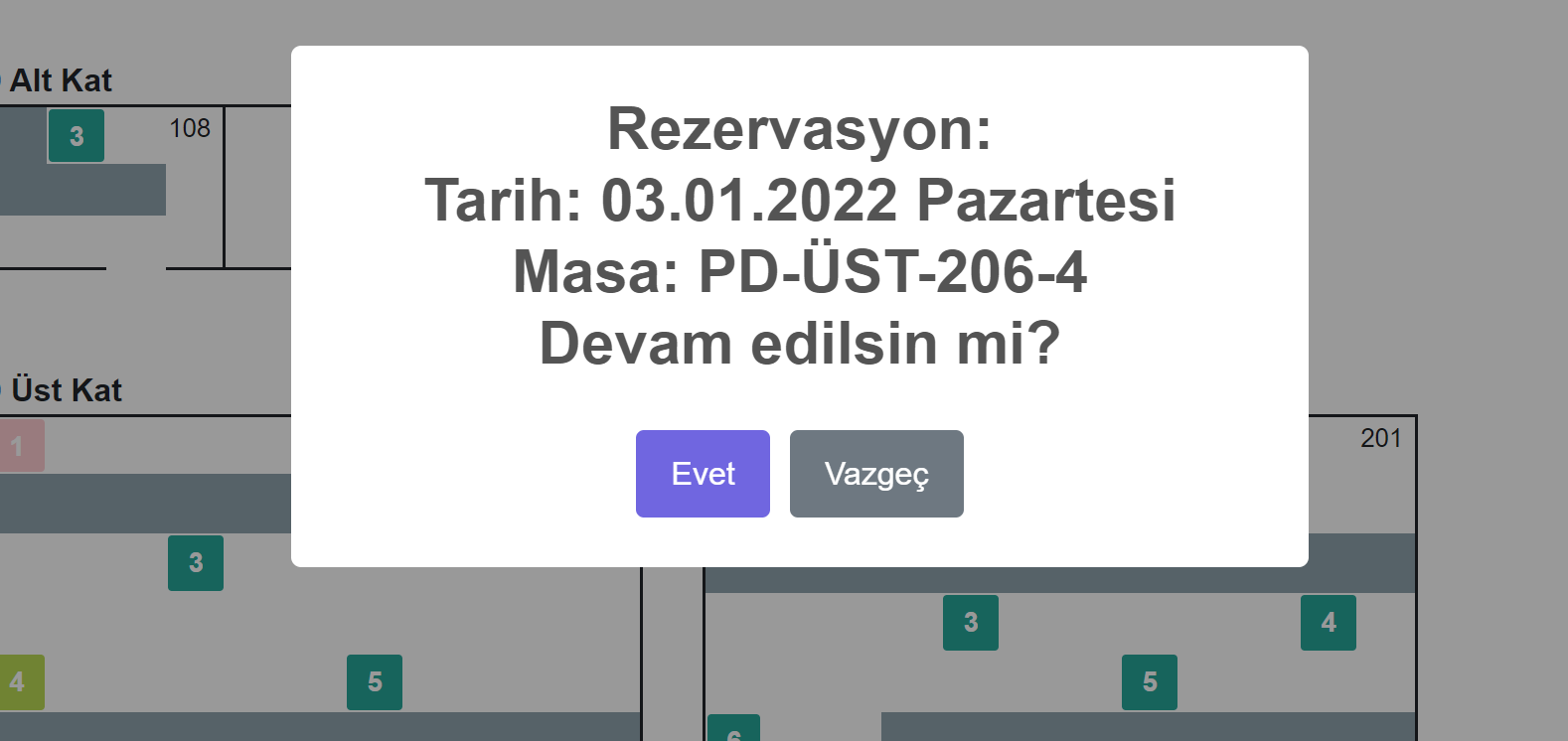
The following rules apply:
- Past reservations cannot be made.
- Future reservations cannot be made after 1 week.
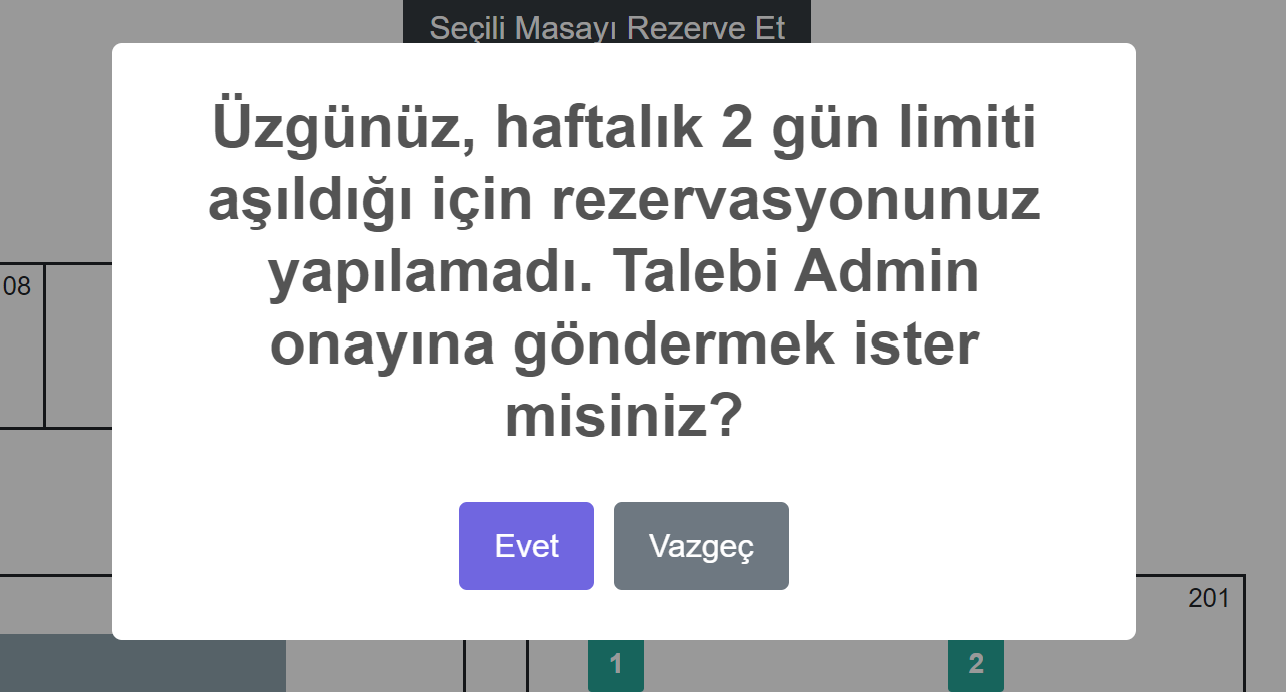
- If the weekly limit is exceeded, reservations cannot be made. You can still request approval for such cases. A reservation is not deemed to have been made until the request has been confirmed.
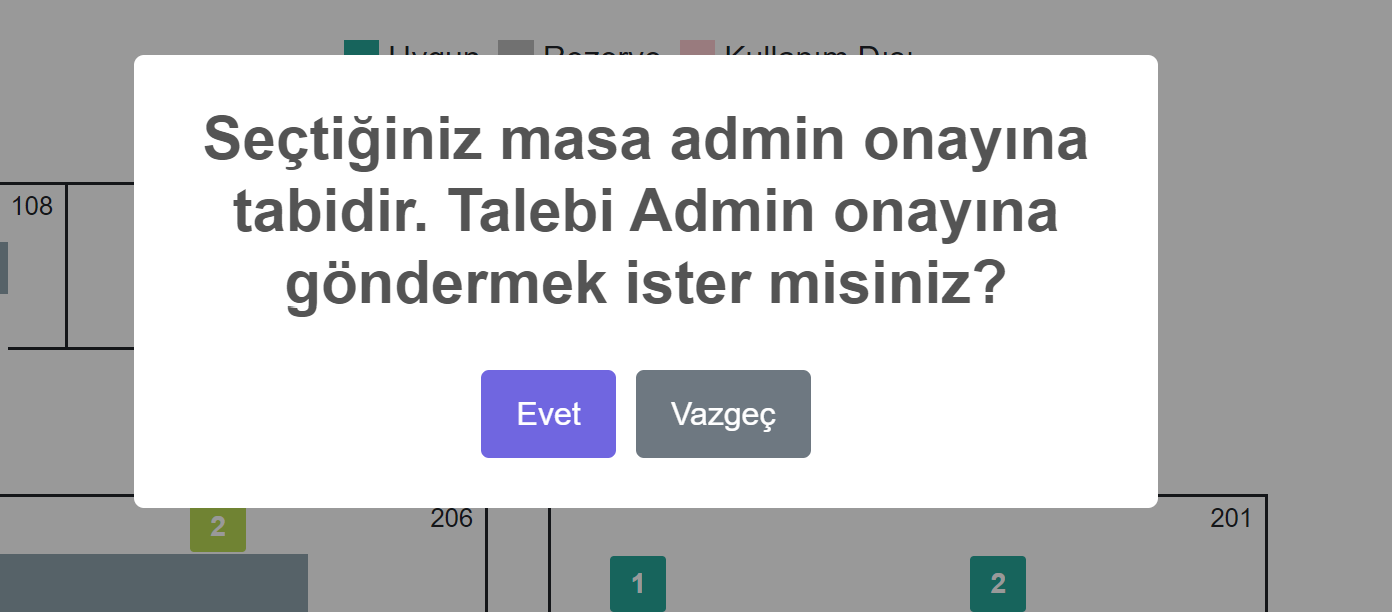
- Determined tables are not included in the automatic approval system. When you select these tables, you may receive a notification as follows:
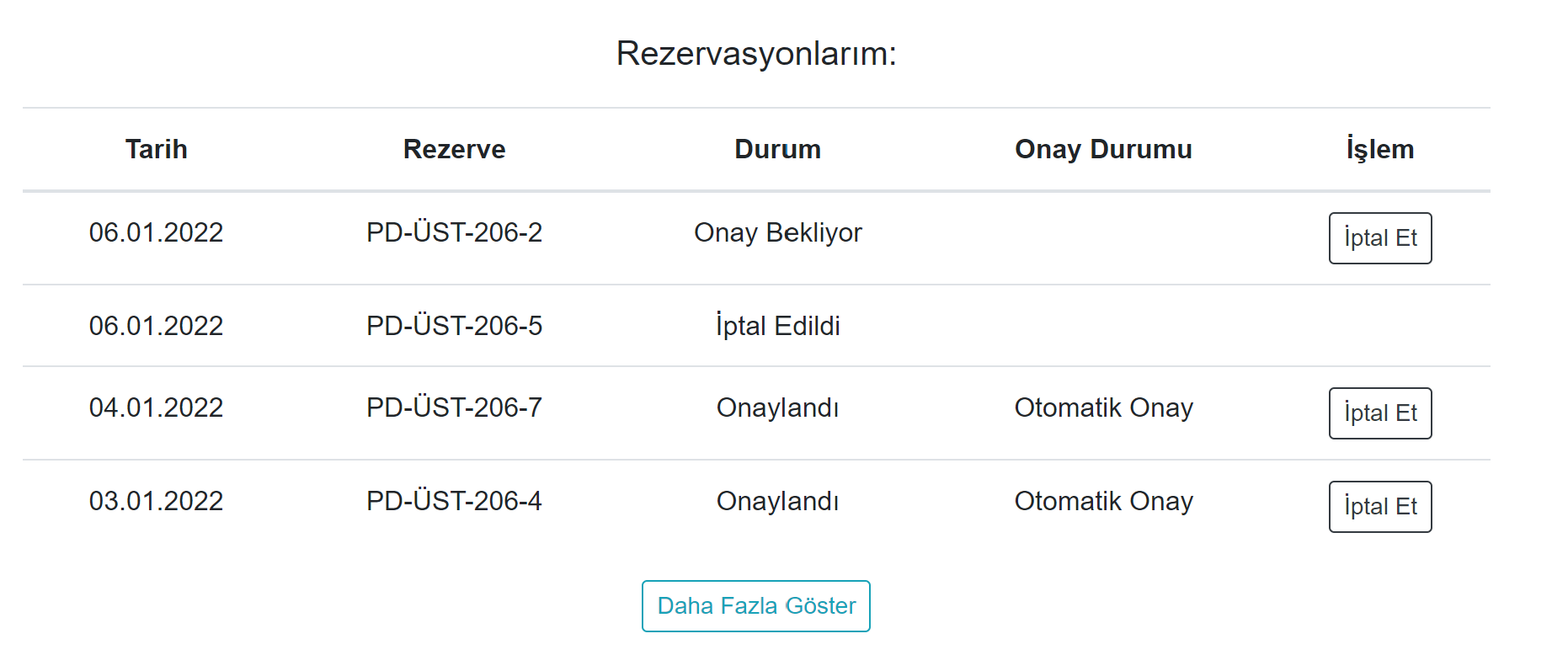
- You can see all your reservation status at the top. Admin responses to requests pending approval will also be sent to your e-mail.
Feedback
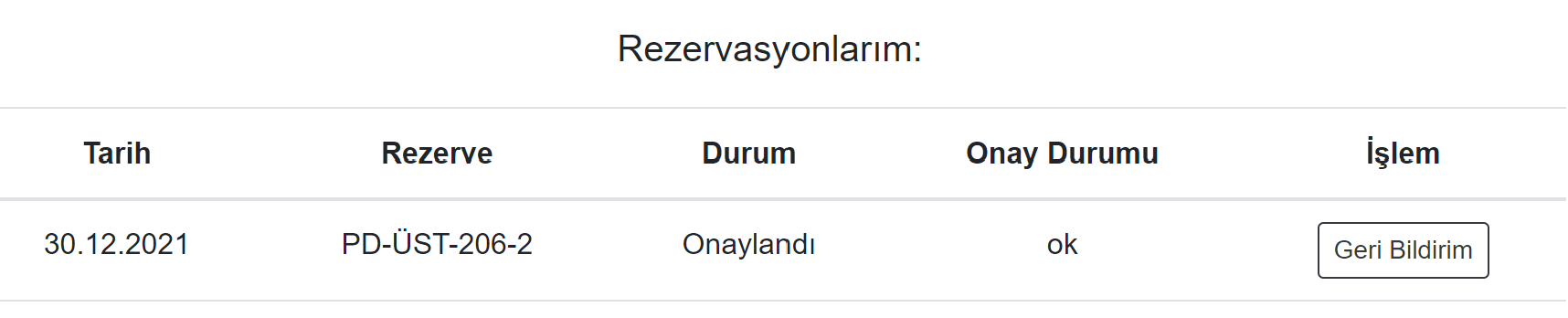
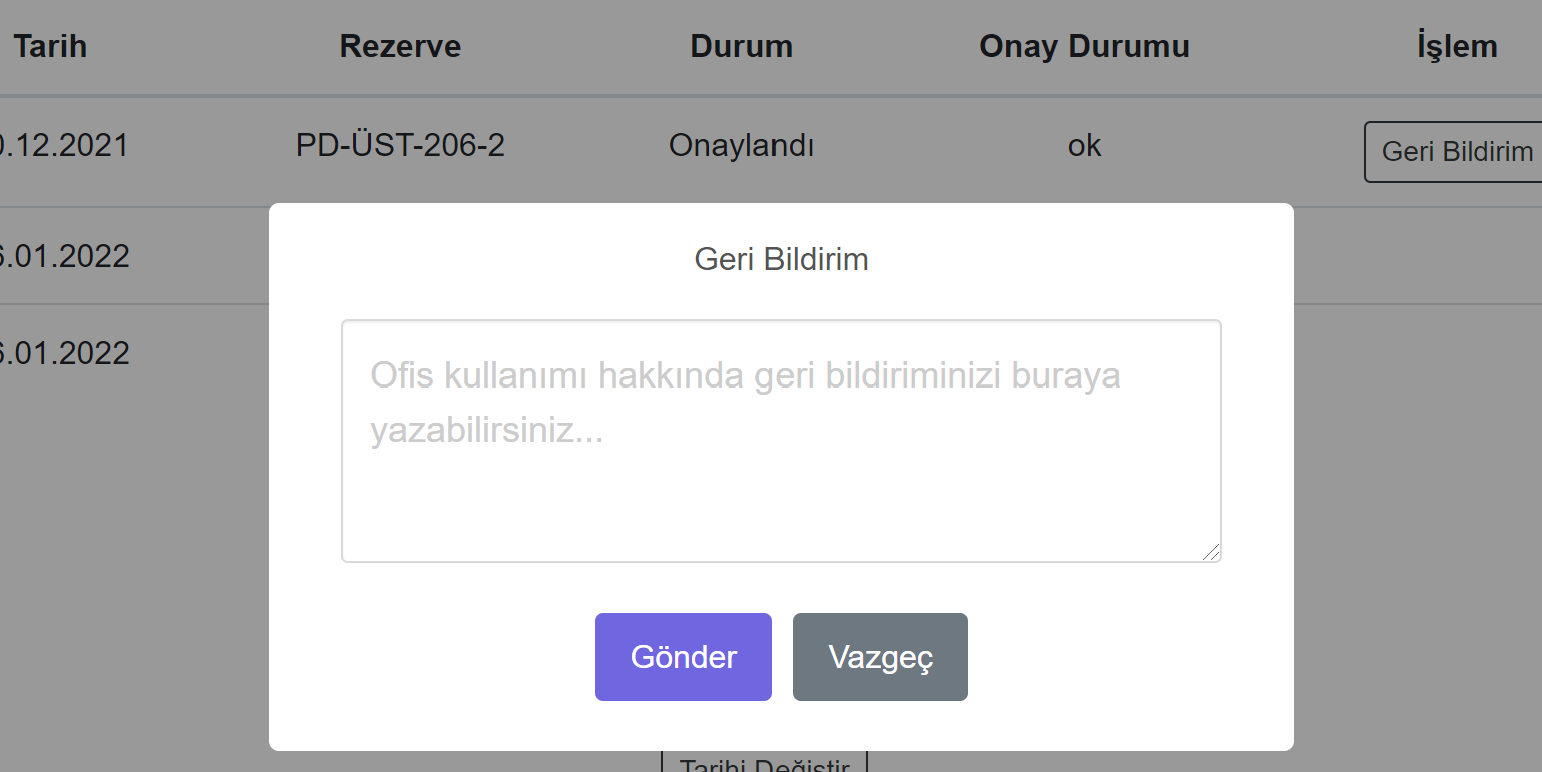
After using your reservation, you will see a Feedback button under the My Reservations heading. By clicking this button, you can give feedback about the office and usage.